BillSetu – User Guide
BillSetu – User Guide
We are pleased to introduce BillSetu, a powerful invoicing
and revenue management module within Spectrum Cloud. BillSetu is designed
to streamline billing workflows, enhance financial visibility, and ensure
statutory compliance in document generation.
With an intuitive interface and automation-driven features,
BillSetu enables professionals and firms to efficiently manage invoicing, track
payments, and maintain accurate financial records.
Key Features and Highlights
- Real-Time WYSIWYG Invoice Builder: BillSetu offers a real-time WYSIWYG (What You See Is What
You Get) builder, allowing users to create invoices with a live
side-by-side preview. As users edit invoice details, they can instantly
view how Invoices, Credit Notes, and Debit Notes will appear in the
final document.
- Smart GST & Statutory Compliance: The system automatically ensures GST compliance by intelligently identifying Taxable and Non-Taxable invoices. It calculates IGST or CGST/SGST based on the Place of Supply (POS) and also supports the Reverse Charge Mechanism (RCM) where applicable.
- Dynamic UPI QR Codes: Invoices generated in BillSetu automatically include dynamic
UPI QR codes with the exact payable amount, enabling faster, convenient,
and error-free payment collection for clients.
- Custom Professional Branding: Users can personalize their billing documents with custom theme colors, firm logos, and digital signatures to maintain professional branding. If branding elements are not configured, the system automatically applies the standard CA Authentic Logo as a fallback to maintain document authenticity.
- Automated Client Synchronization: Client data is automatically synchronized from the Spectrum Cloud platform, ensuring consistent client information across modules. Additionally, historical invoicing records remain preserved even if a client is later removed from the primary client directory.
- Comprehensive Client Ledger & Dashboard: BillSetu provides a centralized dashboard that offers complete financial visibility at both firm and client levels. Users can track key financial metrics such as:
- Total Billed Amount
- Amount Received
- Opening Balances
- Net
Exposure
This helps firms monitor outstanding receivables and overall billing performance. - One-Click Document Sharing: Invoices can be instantly shared with clients through:
- Professional
PDF invoices
This enables quick and seamless document communication. - Integrated Payment Tracking: BillSetu allows users to record partial or full payments against invoices. Based on the recorded payments, the system automatically updates the invoice status to:
- Unpaid
- Partially Paid
- Paid
This ensures accurate tracking of receivables. - Secure Audit Trail & Cancellation Workflow: To maintain financial accuracy and audit integrity:
- Issued invoices cannot be deleted.
- Recorded
payment entries are protected from deletion.
- Draft invoices can be deleted before they are issued.
If an invoice needs to be invalidated, a structured cancellation workflow is provided, requiring users to select a mandatory cancellation reason. - GSTR-1 Ready Export: Users can export the complete invoice ledger in Excel format, structured to support GSTR-1 filing requirements, simplifying GST compliance and reporting.
- ICAI Fee Guidelines Integration: BillSetu provides a direct in-application reference to ICAI recommended fee guidelines, helping professionals standardize service pricing and maintain industry-aligned billing practices.

Dashboard
Upon successful login and navigation to the module, the Dashboard screen is displayed. The dashboard provides a consolidated overview of your practice performance through key financial insights such as:
- Total Billed Amount
- Total Amount Received
- Net Exposure
- Average Bill Size
These metrics provide a quick snapshot of billing performance and outstanding receivables.
The application also provides the option to import clients from the KDK platform. By clicking the “Sync Now” button, clients already registered on the KDK platform can be imported into BillSetu. This eliminates the need to manually create client records that already exist in the system, including those associated with GST, TDS, and ITR services.
If you prefer not to import clients immediately, you may select “Skip for Now” and proceed with the application setup.
Period Selection
The Global Header located on the right panel allows you to select a specific time period to analyse dashboard insights. Available options include:
- Current Month
- Previous Quarter
- Current Financial Year
- Custom Date Range
Selecting a period dynamically updates the dashboard data based on the chosen time-frame.
Quick Raise
The Quick Raise section enables users to quickly perform common actions directly from the dashboard. Available options include:
- Create Invoice
- Issue Credit/Debit Note
- Add Client
This feature helps streamline frequently used operations.
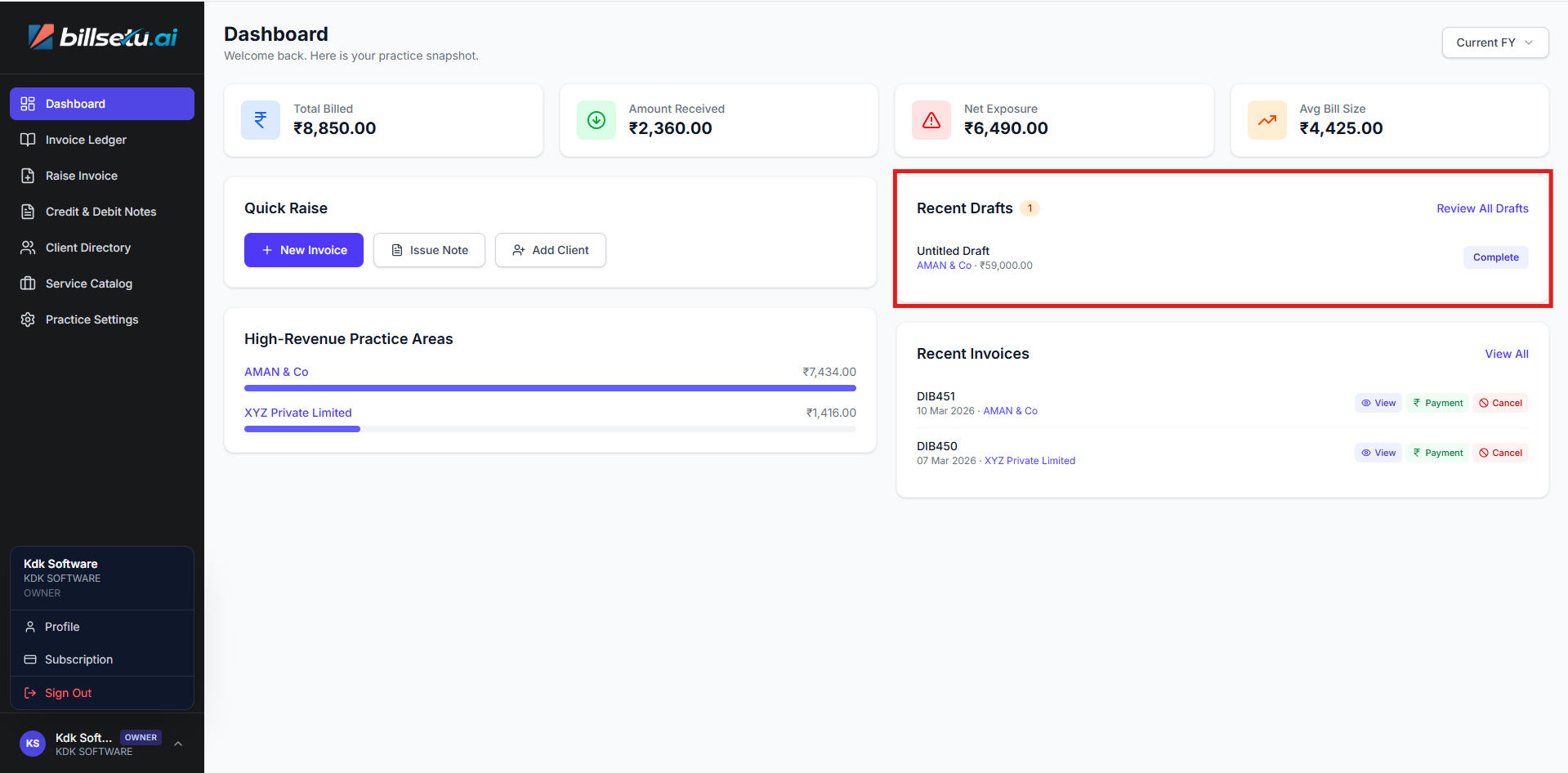
Recent Drafts
The Recent Drafts section displays recently created documents that are saved in draft mode. Users can quickly access and complete pending invoices or notes from this section.
Recent Invoices
The Recent Invoices panel displays the most recently generated invoices within the application.
From this section, users can:
- View invoice details
- Record payment entries
- Cancel invoices if required
Invoice View
Selecting an invoice opens the Invoice Details screen. This screen allows users to:
- Preview the invoice
- Share the invoice via WhatsApp
- Send email reminders to clients
- Download the invoice to the local system
All actions are accessible through the respective action buttons.
Invoice Ledger
The Invoice Ledger provides a consolidated view of all Invoices and Credit/Debit Notes (CNDN) generated within the system. This screen displays key details such as:
- Invoice Amount
- Outstanding Balance
- Payment Status
- Invoice / CNDN Status
The Actions section enables users to perform the following actions:
- Mark a record as Cancelled
- Record Payment Entries
- Issue Credit/Debit Notes
- Share records via WhatsApp
- Send Payment Reminders
Using the Download Report option, users can download the complete invoice ledger for a selected period in Excel format.
Raise Invoice
The Raise Invoice screen allows users to generate invoices for selected clients.
Steps to create an invoice:
- Select the Client
- Enter the Services Provided
- Add applicable Items
Services and items can be managed through the Service Catalog available in the left navigation panel.

Note:
- RCM Selection: The RCM option will be automatically selected if the RCM toggle is enabled in the Document Settings section.
- Editable Amount Field: The Amount field is editable. By default, the amount is populated from the Service Catalog. However, users may modify the amount as required. Any such modification will apply only to the current invoice and will not affect the master service configuration.
- Auto-Populated Drop-Down Fields: The drop-down fields available in Client Details, Services & Items are automatically populated based on the respective master records configured in the system.
Financial Summary
The Financial Summary section allows users to apply discounts to invoices.
Discounts can be applied in the following formats:
- Percentage-based discount
- Flat amount discount
Finalization
The Finalization section allows users to provide additional invoice details including:
- Issued By / Signatory Information
- Notes
- Remarks
After completing the invoice details, the document can be:
- Saved as Draft, or
- Issue Invoice
A Live Invoice Preview is displayed on the right side of the screen to review the document before issuing it.
Credit & Debit Notes
The Credit & Debit Notes module allows users to manage adjustment notes.
Users can filter records by selecting:
- All Notes
- Credit Notes
- Debit Notes
Note: Users can conveniently generate standalone Credit Notes or Debit Notes from this screen.Credit/Debit Note Builder
To create a new note, click the Issue Note button available on the right panel.
The Note Builder screen is used to create Credit or Debit Notes.
Steps to create a note:
- Select the Note Type (Credit or Debit)
- Select or add the Client
- Enter the Reason or Basis for issuing the note
- Add Line Items as required
The Reverse Charge Mechanism (RCM) can be enabled or disabled using the toggle option.
After completing the details, the note can be:
- Saved as Draft, or
- Issued
A Live Preview of the note is available for verification before final submission.
Client Directory / Add Client
To add a new client to the application:
- Click Add Client from the Quick Raise section under Dashboard.
- Enter the required client details.
To ensure accurate ledger creation, either PAN or GSTIN must be provided.
Clients can also be added from the Client Directory available on the left navigation panel.
This section displays all existing or synchronized clients from the KDK platform. Users can:
- View client details
- Modify client information
- Access the client ledger
If a client has an opening or closing balance, it can be updated while creating or editing the client record.
Client Ledger
The Client Ledger provides a detailed summary of all transactions associated with a specific client.
Users can access the ledger by clicking the Ledger button corresponding to the client. The ledger displays:
- Opening Balance
- Transaction History
- Closing Balance / Outstanding Amount
Transactions can also be filtered based on a selected date range.
Service Catalog
The Service Catalog provides a consolidated view of all services saved within the application.
BillSetu also includes a reference to ICAI recommended fee guidelines, helping professionals standardize service pricing and maintain industry-aligned billing practices.
Users can manually add new services by clicking the “Add Service” button and entering the required details.
While adding a service, the following information must be provided:
- Service Name
- HSN/SAC Code
- GST Rate (%)
- Standard Fee for the Service
Once added, the service can be reused while creating invoices or notes.
Practice Settings
The Practice Settings module allows administrators to configure firm-related and billing-related settings.
Firm Details
The Firm Details section allows users to maintain and update organisational information including:
- Firm Name/Legal Name
- Contact Number
- GSTIN
- PAN
- Registered Address
Note: The above details will be printed on all Invoices and Credit/Debit Notes. Therefore, it is important to ensure that the information entered is accurate and up to date. Bank & Payment Details
The Bank & Payment Details section allows users to configure payment collection information, including:
- Bank Account Details
- UPI IDs
These details are displayed on invoices to facilitate client payments.
Branding
The Branding Settings section enables users to customize the visual identity of their billing documents.
Users can configure:
- Theme colours
- Firm logo
- Authorised signature
These settings help maintain consistent and professional document branding.
Document Settings
The Document Settings section allows users to define document generation rules, including:
- Invoice Prefix
- Credit/Debit Note Prefix
- Starting Serial Number
- Reverse Charge Mechanism (RCM) configuration - If enabled, the RCM option will be available and can be applied while generating Invoices and Credit/Debit Notes.
- Default Credit Period (in days) - Once configured, the Due Date for invoices will be automatically calculated based on the defined credit period.
- Additional Terms & Conditions applicable to invoices and notes
Profile Details
Profile-related options can be accessed by clicking on the user name in the left navigation panel.
From this section, users can:
- View Profile Details
- Check Subscription Information
- Sign Out of the application
Conclusion
BillSetu is designed to simplify invoicing and enhance financial management for professionals and firms by combining automation, compliance, and intelligent workflow management within a single platform.
By leveraging BillSetu’s integrated features—including automated GST handling, real-time invoice previews, dynamic payment options, and comprehensive financial tracking—users can significantly improve operational efficiency while maintaining accurate and compliant billing practices.