AI-Driven Task Management Module
1. Overview
The AI-Driven Task Management Module is designed to simplify and automate day-to-day work management by bringing tasks, emails, clients, documents, meetings, and team collaboration together in a single workspace.
The application reduces manual effort through AI-powered features such as Smart Inbox and AI Suggested Tasks, while providing flexible workflows, recurring task templates, document management, calendar integration, and real-time notifications.
With centralized information and intelligent automation, users can manage work more efficiently, maintain better visibility, and ensure that important tasks and activities are not missed.
2. Key Features
The Task Management Module provides the following key capabilities:
- AI-Driven Task Management
- Smart Inbox
- AI Suggested Tasks
- Task Templates
- Document Repository
- Smart Calendar
- Sticky Notes
- Flexible Workflows and Task Types
- Board, List, and Calendar Views
- Advanced Task Management
- Client Master with KDK Synchronization
- Real-Time Dashboard
- Notifications and Alerts
3. Accessing Task Management
To access the Task Management Module:
- Open Office Management.
- Select Task Management.
- The Import Clients screen will be displayed.
Importing Clients: Clients can be added to Task Management using the following options:
- Sync Clients- Use the Sync option to import existing clients from the connected KDK platform.
- Add Clients Manually- If client synchronization is not required, skip the import process and add clients manually from the Clients section.
After completing or skipping the client import process, the Task Management Dashboard will be displayed.
4. Task Management Dashboard
The Dashboard provides a centralized and real-time overview of the firm's work activities.
It helps users quickly understand the current status of tasks and take appropriate action.
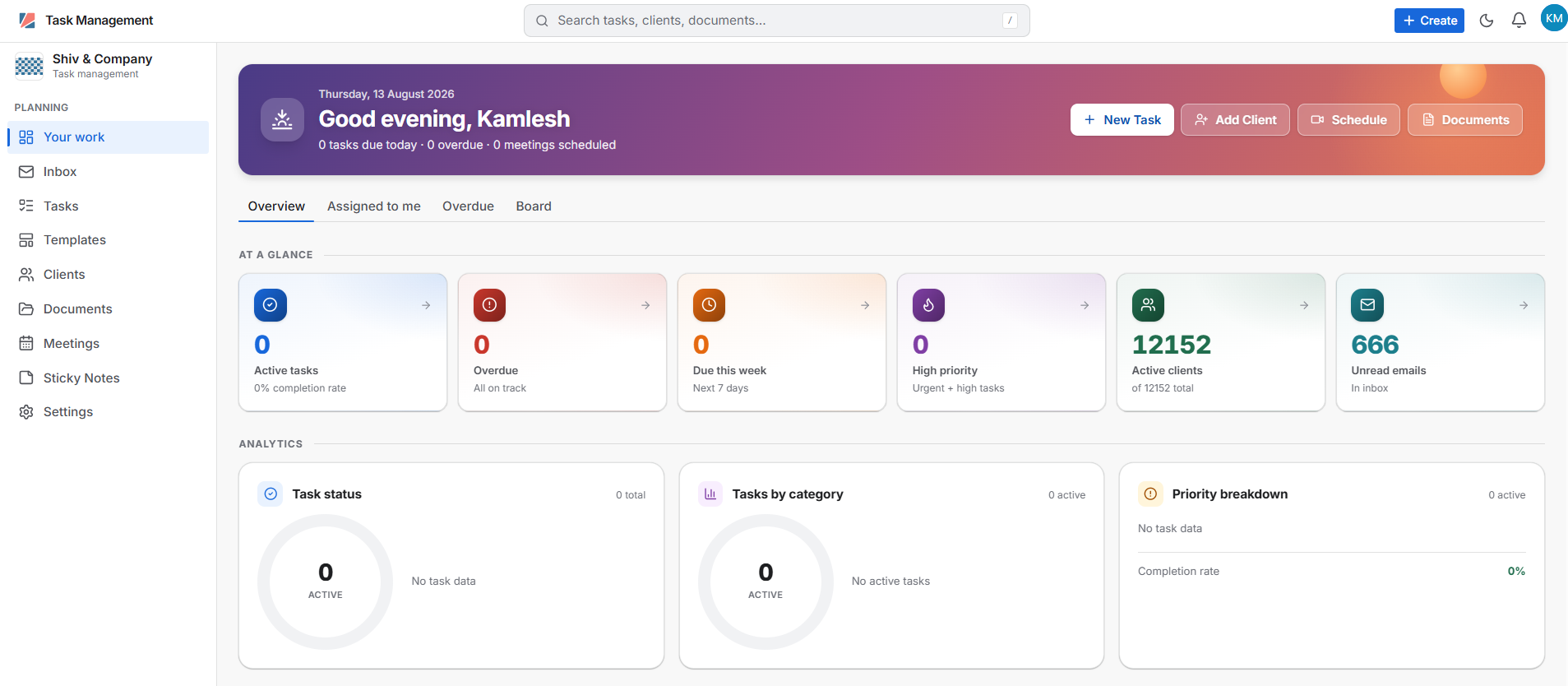
The Dashboard provides visibility into:
- Pending and ongoing tasks
- Task progress and status
- Assigned team members
- Clients
- Meetings and schedules
- Documents
- Recent activities
- Notifications and alerts
Quick Actions
Users can perform commonly required actions directly from the Dashboard, such as:
- New Task – Create a new task.
- Add Client – Add a new client.
- Schedule – Schedule a meeting or activity.
- Documents – Access and manage documents.
The Dashboard provides a single point of access for monitoring work and initiating important activities.
5. Navigation Menu
The left-side navigation menu provides access to the major features of the Task Management Module:
- Your Work
- Inbox
- Tasks
- Templates
- Clients
- Documents
- Meetings
- Sticky Notes
- Settings
6. Your Work
The Your Work section provides a consolidated view of work assigned to or created by the user.
Users can:
- Review assigned tasks.
- Monitor task progress.
- Check pending activities.
- Track ongoing work.
- Review task-related activities.
This provides users with a focused view of their individual responsibilities and helps them prioritize work effectively.
7. Smart Inbox
The Smart Inbox brings email communication directly into the Task Management workspace and helps users convert email conversations into actionable work.
Instead of manually reviewing lengthy email conversations, users can use AI-powered capabilities to understand, respond to, and act on email communication more efficiently.
Key Smart Inbox Capabilities
- Summarize lengthy email threads.
- Generate draft responses.
- Respond to emails quickly.
- Convert relevant email communication into tasks.
- Manage multiple email accounts.
- Configure limited-access email permissions where required.
Email Account Integration
Users can integrate supported email accounts with Task Management.
Multiple email accounts can be connected based on the user's requirements.
Where full mailbox access is not preferred, users can use the available limited-access mode, subject to the permissions supported by the connected email service.
Email Synchronization
After connecting an email account:
- Open Inbox.
- Select the required email account.
- Synchronize the mailbox.
- Available emails will be displayed in the Smart Inbox.
8. AI Suggested Tasks
AI Suggested Tasks intelligently analyzes email content to identify activities that may require follow-up or action.
The AI can generate task information such as:
- Task Title
- Task Description
- Relevant Attachments
This significantly reduces manual effort involved in reading emails and entering task details.
How AI Suggested Tasks Work
- An email is received in the connected Inbox.
- The AI analyzes the email content.
- Potential actionable activities are identified.
- The system suggests a task with relevant information.
- The user reviews the suggested task.
- The task can be created after confirmation.
This feature helps convert email communication into structured and actionable work within seconds.
9. AI-Assisted Email Responses
The Smart Inbox can assist users in responding to emails by generating draft responses based on the available email conversation.
Users can review the AI-generated response, make required changes, and send the email.
This helps reduce the time spent reading lengthy email threads and preparing repetitive responses.
10. Tasks
The Tasks section provides a centralized view of all tasks created within the workspace.
Users can:
- Create new tasks.
- View task details.
- Assign tasks to team members.
- Associate tasks with clients.
- Set priorities and due dates.
- Monitor task status.
- Add subtasks.
- Define task dependencies.
- Add comments.
- Review activity logs.
- Track task progress.
The Tasks section provides complete visibility throughout the task lifecycle—from creation and assignment to completion.
11. Task Views
Task Management provides multiple views to help users monitor and manage work according to their preferred working style.
Board View - The Board View provides a visual representation of tasks based on their status or workflow stage.
It is useful for monitoring task progress and identifying pending activities.
List View - The List View provides a structured list of tasks and their relevant information.
It allows users to quickly review and manage multiple tasks.
Calendar View - The Calendar View provides a date-based representation of tasks, helping users monitor deadlines and scheduled activities.
These multiple views provide flexibility and enable users to manage tasks in the manner most suitable for their workflow.
12. Creating a New Task
To create a new task:
- Open Task Management.
- Click New Task or Create.
- Select the required Project.
- Select a Template, if applicable.
- Select the appropriate Work Type.
- Enter a meaningful Summary.
- Enter the required information in the Description field.
- Add Subtasks, if required.
- Select the appropriate Status.
- Set the required Priority.
- Select the Assignee.
- Select the Reporter.
- Select the relevant Client.
- Select the appropriate Task Category.
- Specify the Due Date.
- Review the entered information.
- Click Create to save the task.
13. Advanced Task Management
Task Management provides advanced capabilities for managing complex activities and maintaining complete accountability.
Subtasks - Large tasks can be divided into smaller Subtasks to make execution easier and provide better progress visibility.
Dependencies - Task Dependencies allow users to define relationships between tasks where completion of one activity may be dependent on another. This helps maintain the correct sequence of work.
Comments - Users can add Comments to tasks to communicate updates, provide instructions, or discuss task-related information with team members.
Activity Logs - Activity Logs maintain a record of important task-related activities and changes.
This provides greater transparency and helps users track how a task has progressed.
Together, these capabilities provide structured execution and improve accountability across the team.
14. Task Templates
The Task Templates feature eliminates repetitive task creation by allowing users to create reusable task structures.
Templates are particularly useful for recurring or standardized activities.
Recurring Tasks
Templates can be configured for recurring activities such as:
- Monthly tasks
- Quarterly tasks
- Yearly tasks
Once configured, recurring tasks can be generated according to the defined schedule.
Benefits of Task Templates
Task Templates help:
- Reduce repetitive data entry.
- Standardize recurring workflows.
- Improve consistency.
- Save time.
- Reduce the possibility of missing recurring activities.
15. Flexible Workflows and Task Types
The Task Management Module provides configurable Workflows and Task Types so that firms can adapt the system to their existing working methods.
Instead of requiring teams to change their processes to fit the application, workflows can be structured according to the firm's requirements.
Workflow Configuration
Workflows can include:
- Task Types
- Workflow Stages
- Service Categories
- Task-specific processes
This flexibility allows different teams or services to follow their own structured processes within the same application.
16. Clients
The Clients section provides centralized access to client information associated with the workspace.
Users can:
- View the client list.
- Review client details.
- Add clients manually.
- Check client status.
- Associate tasks with clients.
Associating tasks with the relevant client provides additional context and makes client-specific work easier to track.
17. Client Master and KDK Synchronization
The Client Master integrates with the connected KDK platform to synchronize client information with Task Management.
This helps maintain a centralized client database and reduces the need for duplicate data entry.
Key Benefits
- Centralized client information.
- KDK client synchronization.
- Reduced duplicate data entry.
- Easy association of tasks with clients.
- Better client-level tracking and context.
By linking tasks with the relevant client, users can maintain a clearer view of all work associated with that client.
18. Document Repository
The Document Repository provides a centralized location for storing and organizing documents.
The system can identify attachments received through email and prompt users to save them in the appropriate location.
Managing Email Attachments
When an email contains an attachment:
- The attachment is identified by the system.
- The user can review the document.
- The user can select the appropriate storage location.
- The document can be saved in the Document Repository.
This reduces the possibility of important attachments being overlooked or remaining unorganized within email conversations.
Cloud Storage Synchronization
The Document Repository supports synchronization with supported cloud storage services, including:
- Google Drive
- OneDrive
This provides users with greater flexibility in managing and accessing documents across their preferred storage environments.
19. Smart Calendar
The Smart Calendar provides a unified view of important schedules and activities.
It brings relevant information together in a single calendar interface, including:
- Schedules
- Meetings
- Agendas
- Notes
- Task-related activities
The unified view helps users plan their work, manage commitments, and ensure that important activities are not overlooked.
20. Meetings
The Meetings section allows users to schedule and manage meetings with clients and team members.
Users can:
- Schedule meetings.
- View upcoming meetings.
- Review meeting information.
- Manage meeting-related activities.
- Coordinate meetings with other work activities.
Meeting information can also be accessed through the Smart Calendar.
21. Sticky Notes
Sticky Notes provide a quick and easily accessible workspace for capturing temporary information, ideas, reminders, and follow-up points.
They can be used for:
- Quick notes.
- Ideas.
- Reminders.
- Instructions.
- Follow-up information.
- Team collaboration.
Team Collaboration
Sticky Notes support real-time collaboration, allowing team members to work together and use @mentions to bring specific team members into a discussion or activity.
This makes Sticky Notes useful for quick communication without creating a separate formal task for every small activity.
22. Notifications and Alerts
The Notifications and Alerts feature keeps users informed about important changes and activities within the workspace.
Notifications can help users stay updated about:
- New task assignments.
- Task updates.
- Mentions.
- Changes to tasks.
- Other relevant activities.
These proactive notifications help ensure that important tasks, updates, and team communications are not missed.
23. Dashboard and Real-Time Insights
The Dashboard provides real-time visibility into work progress and enables users to take immediate action.
It helps users quickly identify:
- Pending work.
- Ongoing activities.
- Task progress.
- Upcoming activities.
- Assigned work.
- Important updates.
By bringing key information together, the Dashboard reduces the need to navigate through multiple sections to understand the current status of work.
24. Important Task Fields
25. Settings
The Settings section provides configuration options for managing the workspace and application behavior.
Major configuration areas include:
Details - Manage firm-related information, including:
- Firm details
- Firm information
- Firm logo
Team & Access - Manage workspace users and their available access.
Task Configuration - Configure:
- Task Types
- Workflows
- Workflow Stages
- Service Categories
Notifications - Manage available notification preferences, including:
- In-app notifications
- Push notifications
Connected Accounts - Manage accounts and external services connected to the workspace.
26. End-to-End Task Management Workflow
A typical workflow can be represented as:
Office Management → Task Management → Import/Sync Clients → Dashboard → Create/Receive Task → Assign Task → Execute Task → Track Progress → Complete Task
Email-to-Task Workflow: For email-driven activities:
Email Received → Smart Inbox → AI Analysis → AI Suggested Task → Review → Create Task → Assign → Execute → Complete
Recurring Task Workflow: For recurring activities:
Create Template → Define Task Details → Set Recurrence → Monthly/Quarterly/Yearly Schedule → Automatic Task Creation → Assignment → Completion
Document Workflow: For email attachments:
Email Received → Attachment Detection → Review Attachment → Save to Document Repository → Organize/Sync → Access Document
27. Best Practices
For effective use of the Task Management Module:
- Keep task summaries concise and meaningful.
- Provide complete instructions in the Description field.
- Always associate tasks with the correct client.
- Assign tasks to the appropriate team member.
- Set realistic due dates.
- Use appropriate priorities.
- Use Templates for recurring activities.
- Use Subtasks to divide complex activities.
- Define Dependencies where task sequencing is required.
- Keep task statuses updated.
- Use AI Suggested Tasks to reduce manual task creation.
- Review AI-generated task information before creating the final task.
- Use Smart Inbox to efficiently manage lengthy email conversations.
- Organize email attachments in the Document Repository.
- Use the Smart Calendar to monitor meetings and scheduled activities.
- Use Sticky Notes for quick information and team collaboration.
- Keep client information synchronized with the KDK platform.
- Review Notifications and Alerts regularly.
- Use Board, List, or Calendar View according to the nature of the work.
- Regularly review the Dashboard to monitor overall progress.
28. Key Benefits
The AI-Driven Task Management Module helps firms:
Reduce Manual Work - AI-powered task suggestions and reusable templates reduce repetitive data entry and manual task creation.
Improve Productivity - Smart Inbox, AI Suggested Tasks, and quick actions allow users to spend less time on administrative activities and more time executing work.
Improve Visibility - Dashboard, Board, List, and Calendar views provide clear visibility into tasks, schedules, and progress.
Standardize Workflows - Templates and configurable workflows help teams follow consistent processes.
Strengthen Accountability - Assignments, subtasks, dependencies, comments, and activity logs provide clear ownership and execution tracking.
Centralize Client Information - KDK synchronization connects client information with related tasks and activities.
Organize Documents - The Document Repository helps users capture, organize, and access documents while supporting cloud storage synchronization.
Improve Collaboration - Sticky Notes, comments, mentions, and shared workspace capabilities support effective team collaboration.
Prevent Missed Activities - Recurring tasks, Smart Calendar, notifications, and alerts help ensure important deadlines and activities are not overlooked.
29. Summary
The AI-Driven Task Management Module provides a comprehensive workspace for managing tasks, emails, clients, documents, meetings, schedules, and team collaboration.
By combining AI-powered automation, Smart Inbox, AI Suggested Tasks, Task Templates, Document Repository, Smart Calendar, Sticky Notes, Flexible Workflows, Advanced Task Management, KDK Client Synchronization, Real-Time Dashboard, and Notifications, the solution helps firms reduce manual effort and improve operational efficiency.
The platform enables teams to move from manual task management to intelligent, structured, and automated workflows, while retaining the flexibility to configure processes according to their business requirements.
From receiving an email to creating a task, assigning responsibility, tracking execution, managing documents, and completing the activity, Task Management brings the entire workflow together in one centralized platform.